Language


Views: 222 Author: Tomorrow Publish Time: 2026-01-28 Origin: Site
Content Menu
● Understanding the CNC Milling Machine Concept
● Key Advantages of an Arduino CNC Milling Machine
● Components and Materials You Need
● Designing and Building the Mechanical Frame
● Setting Up the Motion System
● Configuring CNC Control Software
● Generating G-code from CAD Models
● Common Issues and Troubleshooting Tips
● Upgrading Your CNC Milling Machine
● FAQ
>> 1. How does an Arduino control a CNC milling machine?
>> 2. What materials can I cut with a homemade CNC milling machine?
>> 3. How accurate can an Arduino-based CNC milling machine be?
>> 4. What software tools are recommended for CNC design and control?
>> 5. Can I upgrade my machine after building it?
Building an Arduino CNC milling machine is an exciting and affordable way to explore computer-controlled manufacturing at home. Whether you are an engineer, a student, or a passionate DIY maker, constructing your own CNC system gives you hands-on experience with mechanics, electronics, and CNC programming.
In this complete guide, you will learn everything—from selecting the right components and designing the structure to programming and calibration. By the end, you'll be able to build a fully functioning CNC milling machine powered by Arduino that is capable of cutting, drilling, and engraving with impressive accuracy.
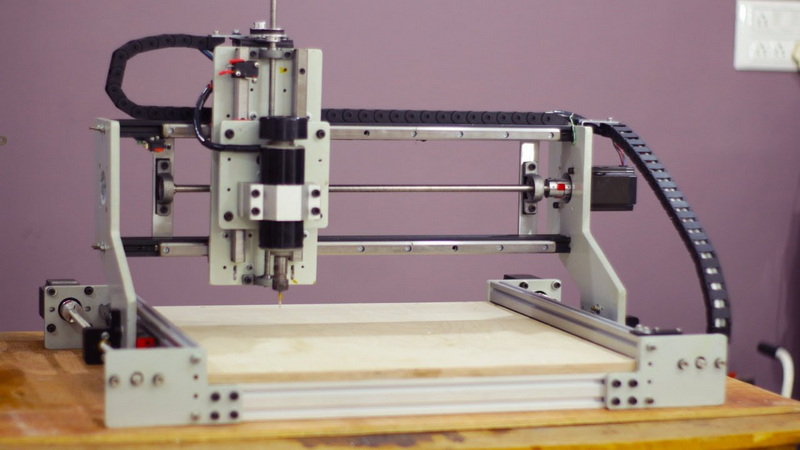
A CNC milling machine automates the standard milling process by using computer numerical control. Instead of operating the machine manually, computer software translates a design into G-code, which instructs the machine how to move its motorized axes.
Most common configurations include three linear axes:
- X-axis for left and right movement.
- Y-axis for forward and backward movement.
- Z-axis for vertical movement of the spindle or cutting tool.
In some advanced builds, you can add a fourth or fifth rotary axis for complex shapes, but for Arduino-based projects, a three-axis setup is more practical and easier to manage. Once your CNC machine interprets the G-code, it drives motors precisely to remove material layer by layer, producing professional-quality models or parts.
Even compared to commercial machines, a home-built Arduino CNC milling machine offers several benefits:
- Low cost: You can construct a small, efficient CNC system for a fraction of the price of industrial equipment.
- Custom design: You can adjust bed size, motor type, and spindle power according to your needs.
- Educational value: The process hones your understanding of mechatronics, CAD/CAM design, and automation.
- Repair and upgrade flexibility: Since you build it yourself, replacing or upgrading components is simple.
- Open-source ecosystem: Arduino and GRBL software are free, widely supported, and compatible with many extension tools.
These characteristics make an Arduino CNC milling machine an ideal starting point for anyone wanting to experiment with digital fabrication.
Before you start assembling your CNC milling machine, gather all essential components. Choosing the right materials ensures durability, stability, and precision in the cutting process.
- Arduino Uno Board – Works as the control brain of your CNC.
- CNC Shield (v3) – Distributes signals from Arduino to stepper drivers and motor connections.
- A4988 or DRV8825 Stepper Drivers – Regulate the current going to the stepper motors.
- NEMA 17 or NEMA 23 Stepper Motors – Drive each axis; select torque based on machine size.
- 12V–24V DC Power Supply – Powers both the motors and Arduino electronics.
- Limit Switches – Define travel boundaries for the axes and prevent damage.
- Relay Module – Controls spindle or coolant operation from G-code commands.
- Frame Structure – Could be made from aluminum profiles, steel tubes, or plywood, depending on cost and weight.
- Lead Screws, Couplers, and Rods – Convert rotary motion from motors into linear movement.
- Linear Bearings and Rails – Ensure smooth, friction-free motion of each axis.
- Spindle Motor or Rotary Tool (like Dremel) – Handles cutting or engraving tasks.
- Work Bed or Platform – Where you clamp your material during milling.
- Screwdrivers, Allen keys, and wrenches
- Soldering iron for wiring connections
- Measuring instruments (ruler, digital caliper)
- Safety equipment like gloves and goggles
When all these parts are organized, you're ready to design the frame and start assembling your CNC machine.
The frame is the foundation of your CNC milling machine. An unstable or imbalanced structure leads to vibration and loss of precision during cutting.
Follow these steps while designing:
1. Select material strength: Aluminum profiles (2020 or 2040 type) are highly recommended for rigidity and lightweight assembly.
2. Dimension planning: Decide your working area—for instance, a small desktop CNC might have 300 x 200 x 60 mm travel.
3. Joinery method: Use screws and corner brackets for an adjustable frame structure.
4. Axis alignment: Keep each axis perpendicular to the others to minimize tool path errors.
After you build the frame, attach linear rails for the X, Y, and Z movements. Install lead screws or belt drives for motion transfer. Check for smooth motion by manually turning the screws and ensuring no binding occurs.
Your motion system converts digital instructions into mechanical movement. Each axis uses one stepper motor connected to a leadscrew or timing belt.
- For leadscrew systems, connect the motor to the screw through a flexible coupler. Leadscrews provide high precision and torque but slightly lower speed.
- For belt-driven systems, use pulleys and GT2 belts for faster motion but slightly less accuracy.
To improve precision, install anti-backlash nuts, which remove gaps between screw threads and nuts, preventing unwanted play during direction changes.
Calibrate travel distance manually by jogging each axis through basic Arduino code or G-code commands before connecting to CNC software.
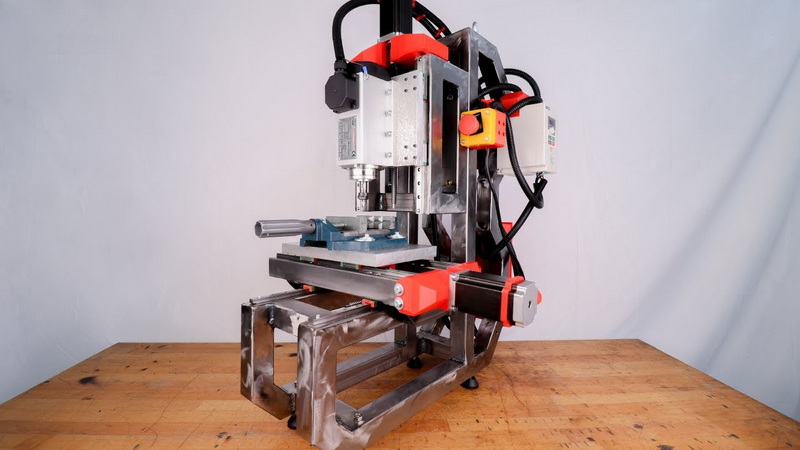
Now it's time to connect the Arduino CNC milling machine electronically.
1. Insert the CNC shield onto the Arduino board.
2. Plug stepper drivers into the shield sockets.
3. Attach each motor to the appropriate terminal (X, Y, Z).
4. Connect limit switches to the shield input pins.
5. Join the power supply positive and negative outputs to the shield's power input.
6. Optionally, connect the spindle via a relay for automatic control.
After completing the wiring, inspect all connections twice to avoid reversed polarity or short circuits. A faulty connection can permanently damage your Arduino board or motor drivers.
To make your machine operable, install GRBL firmware onto your Arduino Uno. GRBL is an open-source motion control firmware that enables milling, drilling, and engraving from G-code files.
Steps to install:
1. Download GRBL's latest version from its GitHub repository.
2. Launch Arduino IDE and add GRBL as a library.
3. Compile and upload it to your Arduino board through a USB connection.
4. Once done, open the serial monitor to verify that GRBL is responding correctly with version information.
GRBL converts coordinate-based G-code commands into precise motor pulses for the stepper drivers, making it a highly efficient firmware for small CNC systems.
After installing GRBL, you'll need computer software to send commands and control your CNC milling machine. Popular choices include:
- Universal G-code Sender (UGS): Clean interface and real-time jogging control.
- Candle: Easy to use, integrates well with GRBL, and supports real-time visual preview.
- OpenBuilds Control: Offers profile management and touch probe support.
Connect your CNC machine to the PC via USB, open the software, and select the right COM port and baud rate (typically 115200). Next, load a sample G-code file, and jog each axis to verify correct direction and movement.
Design your model in CAD software such as Fusion 360 or FreeCAD, then use CAM features to generate G-code. The process involves:
1. Choosing tool paths that match your cutting operation (contour, pocket, drilling, etc.).
2. Specifying material dimensions and tool diameter.
3. Setting spindle speed, feed rate, and cut depth.
4. Exporting the G-code file compatible with GRBL format.
Once the G-code is ready, feed it into your CNC control software and run a dry test without material to ensure movements are safe and accurate.
Calibration ensures mechanical and software settings work in harmony. Follow this procedure:
- Move each axis to its limit manually, verifying endstop switches trigger properly.
- Adjust GRBL parameters such as steps/mm, acceleration, and feed rate using configuration commands.
- Start with soft materials like MDF, foam, or acrylic before moving to metals.
- Measure actual travel distance vs. expected distance and fine-tune calibration numbers until results match.
Consistent calibration helps produce accurate results every time your CNC milling machine runs.
When building your own CNC milling machine, you may encounter issues like:
- Stepper motor stalling: Usually caused by insufficient current or incorrect microstep settings.
- Unstable cuts: Check for loose screws or vibration in the frame.
- Unresponsive spindle: Verify relay wiring or power connections.
- Skipped steps: Reduce feed rate or increase current limit on the drivers.
Regular maintenance and mechanical tightness checks ensure long-term reliability.
Once your basic CNC is operational, you can add advanced features to improve productivity:
- Automatic Z-probe: For precise zero-point detection.
- Spindle speed controller: Adjust RPM directly through software.
- Dust collection hood: Keeps work area clean and safe.
- Wi-Fi or Bluetooth connection: Use a wireless interface like ESP32.
- 4th axis rotary table: Allows rotational engraving or cylindrical cutting.
These upgrades give your machine professional-grade performance and flexibility.
Safety comes first when operating CNC equipment. Always follow these essential rules:
- Wear protective glasses and avoid loose clothing.
- Keep hands away from the spindle during operation.
- Maintain a tidy workspace with secure wiring and grounded power.
- Use an emergency stop button for immediate machine shutdown.
- Unplug the power source before replacing tools or working on electronics.
By adhering to safety procedures, you prevent accidents and extend the life of your machine.
Constructing an Arduino CNC milling machine is an excellent way to learn automation, electronics, and mechanics in one project. The process may seem detailed, but each step—from frame building to firmware setup—teaches practical skills. Once completed, your CNC milling machine can mill wood, engrave acrylic, or even shape light metals for real applications.
This DIY project not only saves money compared to commercial CNC units but also provides a strong foundation for exploring advanced manufacturing technologies. With regular tuning and creative upgrades, your Arduino CNC milling machine can evolve into a versatile digital fabrication tool capable of professional results.
Contact us to get more information!
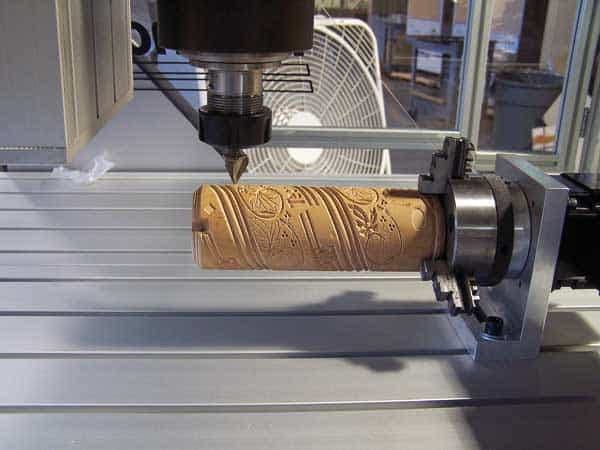
The Arduino runs GRBL firmware that interprets G-code commands and sends step signals to motors, controlling exact motion along the X, Y, and Z axes.
You can cut soft materials like wood, MDF, plastic, acrylic, PCB boards, and even light aluminum depending on spindle torque and cutting bit quality.
A properly assembled machine with stable mechanics and calibrated firmware can achieve accuracy around 0.05 to 0.1 mm, sufficient for hobby or prototype work.
Popular software combinations include Fusion 360 for design, FreeCAD for modeling, and Universal G-code Sender or Candle for CNC operation and job execution.
Yes. You can add stronger stepper motors, improve spindle quality, or even integrate additional axes and automation features over time.
1. https://github.com/grbl/grbl
2. https://winder.github.io/ugs_website/
3. https://candle.software.informer.com/
4. https://www.autodesk.com/products/fusion-360
5. https://www.openbuilds.com


