From idea to market-ready product, our NPI solutions make every stage easier, faster. Discover How We Help

Views: 222 Author: Tomorrow Publish Time: 2026-02-02 Origin: Site


Content Menu
● How To Use Autodesk for CNC Machining?
● Why Use Autodesk for CNC Machining?
● Setting Up Your Autodesk Environment for CNC Machining
>> Choosing the Right Autodesk Product
>> Installing CAM Workspaces and Libraries
● Step 1 – Creating the CAD Model for CNC Machining
● Step2 – Defining Stock and Setup in Autodesk
>> Creating a CNC Machining Setup
>> Planning the CNC Machining Strategy
● Step 3 – Defining Tools and Feeds for CNC Machining
● Step 4 – Generating Toolpaths in Autodesk
>> 2D and 3D Milling Toolpaths for CNC Machining
>> Turning and Drilling in Autodesk for CNC Machining
● Step 5 – Simulating CNC Machining Toolpaths
● Step 6 – Post-Processing and Exporting G-Code
● Workholding, Setups, and Multi-Side CNC Machining
● Surface Finish and Quality in CNC Machining
● Optimizing CNC Machining with Autodesk Tools
● Practical Example of an Autodesk CNC Machining Workflow
● FAQ – CNC Machining with Autodesk
>> 1. What Autodesk software is best for CNC machining?
>> 2. Can Autodesk software generate G-code for my CNC machine?
>> 3. How does Autodesk help prevent CNC machining collisions?
>> 4. Is Autodesk suitable for 5-axis CNC machining?
>> 5. How can I speed up programming repetitive CNC machining jobs?
Using Autodesk software for CNC machining lets you move from 3D design to accurate toolpaths and G-code inside one integrated workflow, reducing errors and setup time. By building a consistent process, you can standardize CNC machining for mills, routers, and lathes across your entire shop.
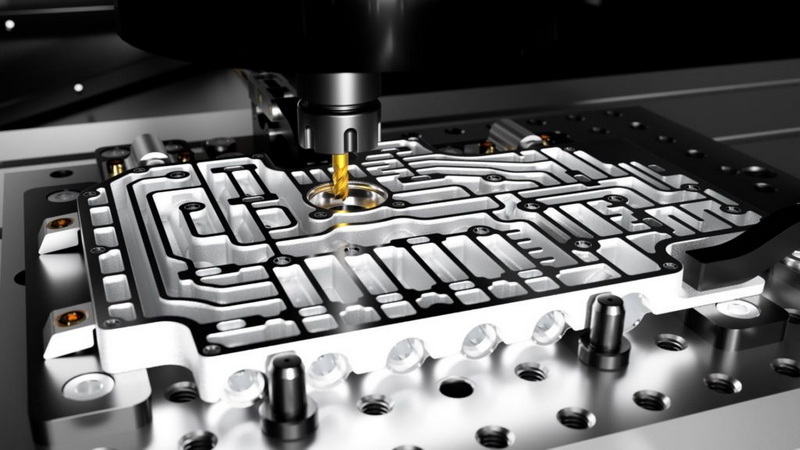
CNC machining relies on a complete digital workflow, and Autodesk tools such as Fusion 360 and Inventor HSM provide CAD and CAM in a single environment for modeling, toolpath creation, simulation, and post-processing. When you understand each stage—from design to verification—you can implement CNC machining with fewer mistakes, shorter cycles, and more predictable results.
Autodesk Fusion 360 and Inventor HSM are built to streamline CNC machining by combining design, engineering, and CAM under one platform. This integration lets you update a model and automatically refresh CNC machining toolpaths, which is critical for iterative product development and prototyping.
Key advantages for CNC machining include:
- Parametric and direct modeling tied directly to CAM operations.
- Built-in 2D, 3D, 3+2, and multi-axis milling, turning, and drilling strategies.
- Libraries for tools, machines, and post processors to generate machine-ready NC code.
- Simulation and verification tools that help catch collisions and optimize CNC machining efficiency before cutting metal.
Autodesk's cloud services, version control, and collaboration tools also support CNC machining teams that must share models, tool libraries, and manufacturing templates. Engineers can focus on design intent while CAM programmers optimize CNC machining strategies using the same master model.
For most users, Fusion 360 is the primary Autodesk solution for CNC machining because it combines CAD, CAM, documentation, and even basic analysis in one cloud-connected tool. Inventor with HSM or Inventor CAM is well-suited for users already invested in Inventor for mechanical design who need integrated CNC machining inside that ecosystem.
A practical rule is:
- Use Fusion 360 if you want a single platform for modeling, CNC machining, collaboration, and simulation.
- Use Inventor HSM if your organization's core 3D design work is in Inventor and you need tighter integration with existing assemblies and drawings.
Both platforms support modern CNC machining workflows; the main difference is where your primary design work lives and how your team prefers to collaborate.
In Fusion 360, CNC machining workflows live inside the Manufacture workspace, which includes setup, toolpath, and post-processing tools. Once active, you can access milling, turning, and drilling strategies, as well as tool, setup, and post configuration libraries tailored to CNC machining.
In Inventor HSM, the CAM environment is added as an integrated panel where you can define setups and operations directly on Inventor parts and assemblies. To prepare for CNC machining, you should also configure:
- Tool libraries with common end mills, drills, thread mills, and specialty tools used in your CNC machining shop.
- Machine or post libraries that match your CNC controllers, such as Fanuc, Haas, Okuma, or Siemens.
- Default templates that pre-load feeds, speeds, and stepovers by material to accelerate CNC machining programming.
CNC machining starts with a precise 3D or 2D model that defines every feature the tool will cut. Autodesk Fusion 360 and Inventor offer sketching, constraints, and solid modeling tools so you can design prismatic, freeform, or sheet-based parts that are ready for CNC machining.
When designing for CNC machining:
- Use fully constrained sketches to ensure dimensions update predictably when changed.
- Add fillets, chamfers, and hole features that reflect available CNC machining tools, such as standard drill sizes or end mill radii.
- Avoid needless small radii or deep narrow slots that are difficult to reach with standard CNC machining cutters.
- Consider cutter reach and workholding so that features are accessible during CNC machining without collisions.
Simple modeling habits make downstream CNC machining easier. For example, using patterned hole features instead of manual sketches allows CAM operations like drilling cycles to automatically recognize hole families, simplifying CNC machining programming.
In the Manufacture workspace of Fusion 360, you start by creating a Setup that defines stock, orientation, and work coordinate system (WCS) for CNC machining. The setup tells the CAM engine where the stock is, how the part is oriented, and where zero is on the CNC machine.
Typical setup steps for CNC machining include:
- Choosing the operation type: milling, turning, or cutting.
- Selecting the model body or components that will be machined.
- Defining WCS origin at a convenient touch-off location such as the stock corner or part face.
- Specifying stock dimensions, either as relative offsets from the part or as fixed size stock matching what you load into the CNC machine.
For accurate CNC machining, always match the digital setup to the real workholding. If you flip, rotate, or reposition the part in the vise, you should create corresponding additional setups in the CAM environment.
Before generating toolpaths, you should decide a logical CNC machining sequence that reduces tool changes and ensures stable cutting. Autodesk CAM environments encourage you to plan roughing, semi-finishing, and finishing passes, along with drilling and contouring, as separate CNC machining operations.
A typical workflow for prismatic CNC machining:
- Face the stock to establish a reference surface.
- Rough pockets and cavities with adaptive or clearing strategies.
- Semi-finish and finish walls and floors with contour and horizontal strategies.
- Drill or bore holes, then run final finishing passes or chamfers to complete CNC machining.
For multi-side or multi-axis CNC machining, this planning also includes how many setups you will use, what orientation each setup uses, and which features you cut in each orientation to maintain rigidity and accuracy.
Autodesk CAM lets you define cutting tools, including dimensions, holder, material, and cutting data, and reuse them across CNC machining projects. Tools can be stored in local or cloud libraries and grouped by machine, material, or job type to speed up CNC machining setup.
When defining tools for CNC machining:
- Specify cutter type, such as flat end mill, ball end mill, bull nose, drill, chamfer mill, or thread mill.
- Enter diameter, flute length, overall length, and holder geometry to ensure collision-free CNC machining simulations.
- Set default spindle speeds, feed rates, and stepdowns appropriate for the workpiece material to standardize CNC machining performance.
- Group tools into libraries that mirror physical tool carts or machine magazines to keep digital and physical CNC machining setups in sync.
Good tool management is a cornerstone of efficient CNC machining. Once tools and feeds are dialed in for a typical material like aluminum or mild steel, you can reuse them across dozens of parts, knowing that Autodesk toolpaths will start from proven CNC machining parameters.
Fusion 360 and Inventor HSM provide a wide range of 2D and 3D milling strategies to handle most CNC machining tasks. You can mix operations such as 2D contour, pocket, adaptive clearing, parallel, scallop, and slotting to machine complex parts efficiently.
Key toolpath types for CNC machining:
- 2D Face and 2D Pocket: Used to face stock and clear flat-bottomed pockets.
- 2D Contour: Follows part edges to finish perimeters and profiles.
- Adaptive Clearing: High-efficiency roughing that maintains consistent engagement, ideal for CNC machining hard materials.
- Parallel and Scallop: 3D finishing paths suited to curved surfaces in advanced CNC machining.
- Horizontal and Morph: Used to finish stepped or variable-slope surfaces with even cusp height.
By adjusting tolerances, stepovers, and stepdowns, you can control surface finish and cycle time. Smaller stepovers produce finer finishes in CNC machining, while larger stepovers reduce machining time at the cost of a rougher surface.
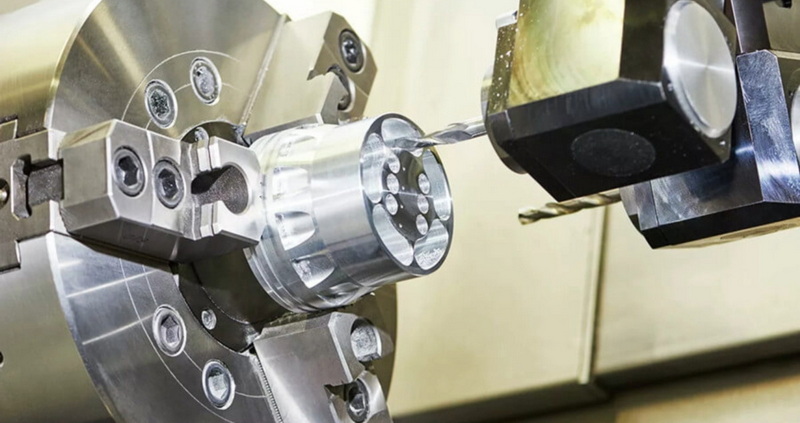
For lathes and mill-turn centers, Inventor HSM and Fusion 360 include turning strategies such as facing, roughing, profiling, grooving, parting, and threading. Drilling operations cover spot drilling, peck drilling, tapping, and boring, with hole recognition tools to speed programming of complex CNC machining jobs.
Using dedicated turning operations, you define chucking strategy, stock, and tool orientation, then apply rough and finish toolpaths to complete cylindrical CNC machining. For mill-turn parts, you can program live-tool milling on turned parts, coordinating spindle, turret, and axes in one CNC machining workflow.

Simulation is essential to verify CNC machining toolpaths and avoid machine crashes or scrap. Autodesk CAM environments provide visual simulation of tool motion, material removal, and potential collisions between tool, holder, fixtures, and stock during CNC machining.
When simulating CNC machining:
- Play through each operation, checking for gouges, missed features, or over-cut areas.
- Inspect stock comparison to visualize remaining material before finishing passes.
- Watch machine movements for rapid retractions and linking moves that could cause collisions or inefficiencies on the CNC machine.
- Use time estimates to compare alternative CNC machining strategies and choose the most efficient one.
For complex CNC machining, you can also simulate with machine models enabled, which shows axis motion and travel limits, giving you an extra level of verification before you run the program on the real machine.
Once CNC machining toolpaths are verified, the next stage is to post-process them into controller-specific NC code. Autodesk provides a large library of post processors for common CNC machines, and you can customize or download additional posts when needed.
For reliable CNC machining output:
- Select the correct post corresponding to your machine brand and controller.
- Configure post options such as work offset numbers, output units, coolant commands, and safe retract levels tailored to your CNC machining process.
- Save and review the generated G-code, then transfer it to the CNC machine via USB, network, or DNC connection.
- On the control, load and preview the program, verify work offsets and tool lengths, and dry run the CNC machining program before cutting.
By standardizing posts and post settings, you can ensure that every programmer on the team produces compatible CNC machining code for each machine on the shop floor.
Effective workholding is a critical but sometimes overlooked part of CNC machining with Autodesk tools. The digital setup must reflect the real vise, clamps, soft jaws, or fixtures used during CNC machining so simulations match reality.
In Fusion 360 and Inventor HSM you can:
- Model vises, clamps, and fixtures as components and include them in the manufacturing model.
- Use multiple setups to represent first-op and second-op CNC machining, such as flipping a part or moving to another fixture.
- Apply boundaries and keep-out regions so toolpaths avoid clamps and fixtures during CNC machining.
- Create parametric fixtures and soft jaws that update with the part, keeping CNC machining setups consistent as the design evolves.
For parts larger than the machine envelope, you can break the CNC machining into sections using indexed setups or staged operations. Each setup becomes a carefully aligned portion of the full toolpath, letting a small CNC machine cut a large component with consistent accuracy.
Autodesk CAM gives you fine control over surface finish, which is vital for high-end CNC machining in industries such as aerospace, automotive, and mold making. Toolpath parameters, machine motion, and tooling choice all affect the final surface quality.
Practical tips for better CNC machining finishes include:
- Use climb milling and consistent cutter engagement where possible.
- Reduce stepovers and tolerances on finishing toolpaths for smoother surfaces.
- Employ dedicated finishing passes separate from roughing CNC machining strategies.
- Choose appropriate cutters, such as ball or barrel tools, for complex 3D surfaces.
- Tune controller settings like smoothing, look-ahead, or high-speed machining options to improve motion quality.
By combining Autodesk's precise toolpaths with optimized machine settings and tooling, you can achieve excellent surface finishes directly from CNC machining, reducing manual polishing or secondary processes.
Autodesk CAM tools help you optimize CNC machining by automating repetitive work and standardizing best practices. Through templates, default settings, and custom strategies, you can reduce programming time and increase consistency across CNC machining jobs.
Useful optimization approaches include:
- Creating templates that bundle setups, tools, and operations for typical part families.
- Using process-driven naming conventions for tools and operations so CNC machining programs are easy to understand.
- Adjusting stepovers, stepdowns, and engagement angles in adaptive and contour passes to balance tool life and cycle time.
- Leveraging cloud libraries so multiple programmers share the same CNC machining tool data and posts.
- Reviewing toolpath statistics and simulation times to identify CNC machining bottlenecks and refine operations.
As you build experience, you can develop a library of proven strategies for different materials and geometries, turning CNC machining into a repeatable, predictable process rather than a trial-and-error exercise.
A simple example shows how a Fusion 360 user would take a rectangular aluminum part with pockets and holes through CNC machining. The process highlights the end-to-end workflow from CAD to CAM and G-code.
Typical workflow:
- Model the part with sketches, extrudes, pockets, and holes.
- Create a milling setup with stock defined as an offset around the model, and orient WCS at the top-front corner.
- Generate a facing pass, adaptive roughing for cavities, 2D pockets, 2D contours, and drilling operations.
- Simulate each operation, check for collisions, and refine feeds and speeds.
- Post-process to a compatible CNC machining G-code file that runs on your mill, then set up the stock and run the program on the CNC machine.
Once you have completed this cycle a few times, you can capture it as a template and reuse the same sequence and CNC machining settings for similar parts.
Autodesk tools such as Fusion 360 and Inventor HSM provide a complete workflow for CNC machining, from solid modeling and stock definition through toolpath creation and simulation. By mastering setups, tool libraries, milling and turning strategies, and post-processing, you can create efficient, repeatable CNC machining programs for many machine types and materials. Using templates, optimized cutting parameters, simulation, and well-designed workholding further improves CNC machining quality, tool life, and throughput in modern digital manufacturing.
Contact us to get more information!
Fusion 360 is generally the most suitable Autodesk platform for CNC machining because it combines CAD, CAM, and collaboration in one cloud-enabled environment. For organizations centered on Inventor, Inventor HSM or Inventor CAM adds integrated CNC machining directly to existing design workflows.
Yes, Autodesk CAM solutions include post processors that translate toolpaths into G-code or similar NC formats for many CNC machining controllers. You can choose a stock post, customize one, or download additional posts to match your specific CNC machining equipment.
Autodesk CNC machining workflows include toolpath simulation and stock removal visualization that highlight gouges, collisions, and over-travel before running the program. By modeling tools, holders, and fixtures accurately, you can catch potential issues and adjust toolpaths or clearances before machining.
Fusion 360 and Inventor HSM support advanced multi-axis strategies that extend CNC machining capabilities to 3+2 and full 5-axis work. These tools allow complex surfacing, swarf cutting, and index-based CNC machining, making them suitable for aerospace, automotive, and mold applications.
You can build templates that store standard tools, feeds, and operation sequences for families of parts and reuse them across CNC machining projects. This approach, along with shared tool libraries and consistent cutting parameters, dramatically reduces programming time and variability in CNC machining.
1. https://www.autodesk.com/uk/products/fusion-360/cnc-machining
2. https://www.autodesk.com/products/fusion-360/blog/cnc-machining-101-a-comprehensive-guide/
3. https://www.autodesk.com/autodesk-university/class/Fusion-360-CAM-Fundamental-Workflows-2019
4. https://www.autodesk.com/autodesk-university/class/Automating-CNC-Programming-Inventor-HSM-2015
5. https://static.au-uw2-prd.autodesk.com/handout_6950_PE6950_20-_20Getting_20Started_20with_20Inventor_20HSM_20for_20Designers_20a
6. https://makerspace.uq.edu.au/files/520/TU-014-A%20CNC%20Training_Level%201%20Inventor%20HSM%20training.pdf
7. https://www.instructables.com/The-Basics-of-Design-and-Fusion-360-CAM-for-CNC-Ro/
8. https://www.autodesk.com/learn/ondemand/tutorial/create-a-setup-in-fusion-for-milling
9. https://www.autodesk.com/autodesk-university/es/class/How-Achieve-Brilliant-Surface-Finishes-CNC-Machining-2016


