From idea to market-ready product, our NPI solutions make every stage easier, faster. Discover How We Help

Views: 222 Author: Tomorrow Publish Time: 2026-01-22 Origin: Site


Content Menu
● Why Create CNC Milling Animation?
● Understanding CNC Milling in Fusion 360
● Preparing Your Model for CNC Milling
● Setting Up CNC Milling Toolpaths in Fusion 360
● Simulating CNC Milling Before Animation
● Switching to the Animation Workspace
● Planning the CNC Milling Storyboard
● Animating Fixtures, Stock, and Tools
● Using Camera Moves and Exploded Views
● Enhancing CNC Milling Animation With Callouts and Notes
● Linking CNC Milling Simulation to Animation
● Publishing and Using the CNC Milling Animation
● Best Practices for CNC Milling Animation
● FAQ About CNC Milling Animation in Fusion 360
>> 1. How do I start a CNC Milling animation in Fusion 360?
>> 2. Can Fusion 360 show real CNC Milling material removal in an animation?
>> 3. What components should I include in a CNC Milling animation?
>> 4. How long should a CNC Milling animation be?
>> 5. Can I reuse a CNC Milling animation when the design changes?
Creating a clear CNC Milling animation in Fusion 360 is one of the most effective ways to explain toolpaths, setups, and machining steps to operators, customers, or students. A well-planned CNC Milling animation visually shows how stock is fixed, how tools move, and how material is removed during the complete manufacturing workflow.
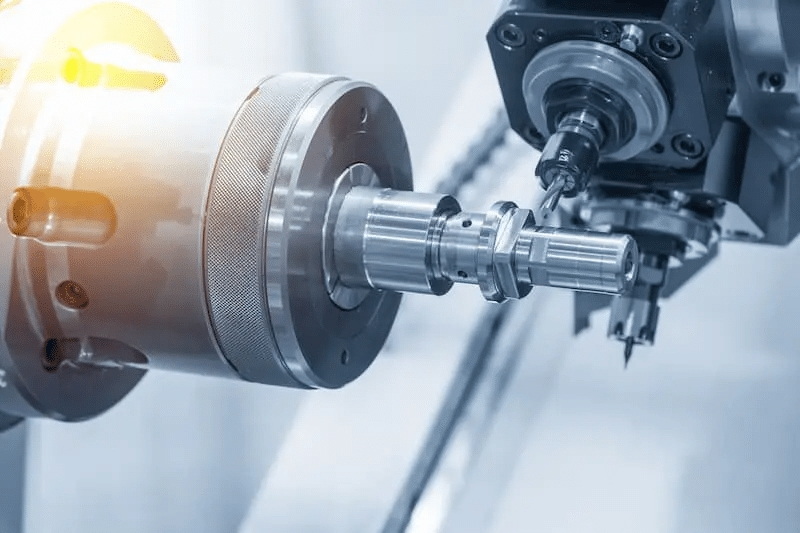
CNC Milling animation in Fusion 360 turns static CAM data into an easy-to-understand visual story that matches real shop-floor operations. This is especially useful when complex CNC Milling setups, fixtures, and multi-operation processes must be communicated to non-technical people.
A good CNC Milling animation helps standardize work instructions and reduces operator errors at the machine. It also speeds up training for new employees by presenting the entire CNC Milling workflow instead of relying only on written process sheets. For CNC Milling service providers, a professional animation adds strong visual support to quotations, technical presentations, and marketing materials.
Before building any CNC Milling animation, it is important to understand how Fusion 360 organizes design and manufacturing data. Fusion 360 is a unified platform that combines CAD, CAM, and visualization tools in one environment, which makes it ideal for CNC Milling projects.
In the Design workspace, you create the solid or surface models that will later be machined with CNC Milling. In the Manufacture workspace, you define milling setups, select cutters, create CNC Milling toolpaths, and simulate the material removal process. Finally, in the Animation workspace, you create a visual story that explains the CNC Milling process in a way that is easy for any viewer to understand.
Before starting any CNC Milling animation in Fusion 360, the 3D model and assembly must be well organized into components. Each fixture, vise, workpiece, tool, and sub-assembly used in the CNC Milling process should be created as a separate component so it can be moved independently in the Animation workspace.
If your model currently contains only bodies, convert them into components using the “Create Components from Bodies” command. Clear naming is also important, so use descriptive names such as “CNC Milling Stock,” “Vise Body,” “Soft Jaws,” “Top Clamp,” or “Tool Holder.” This structure makes it much easier to control each item during the CNC Milling animation.
A realistic CNC Milling animation also depends on representing the real workholding conditions. Take time to model clamps, vices, pallets, or tombstones similar to what you use on the CNC Milling machine. When the animation matches the real fixture layout, operators can directly relate the CNC Milling animation to what they see on the actual machine table.
The heart of CNC Milling animation is accurate CAM data that represents real tool motion and material removal. In Fusion 360, the Manufacture workspace is where you define setups and CNC Milling operations that reflect true machine behavior.
First, create a Milling setup and select the correct machine orientation, work coordinate system, and stock dimensions. Then add appropriate CNC Milling operations such as Facing, 2D Pocket, 2D Contour, Slot, Adaptive Clearing, and Drilling. Each operation should reflect how you actually plan to run the CNC Milling process on the shop floor.
To make the simulation and the CNC Milling animation realistic, define proper cutting tools in your tool library. For each end mill, face mill, or drill, specify tool diameter, flute length, holder, feeds, speeds, and stepdowns. When CNC Milling operations are built on this accurate data, the simulation better reflects spindle behavior, chip load, and cycle time.
Before creating the CNC Milling animation itself, run the CAM simulation in the Manufacture workspace to confirm that toolpaths are safe and collision-free. The built-in simulation shows the cutting tool, holder, and stock in motion, and it displays how material is removed during each CNC Milling pass.
Use the Simulate command on the entire setup or on specific operations. During simulation, enable stock display, toolpath visibility, and collision checks. This helps you verify that the CNC Milling sequence is efficient, does not violate fixtures or clamps, and leaves the desired final geometry.
Although the CAM simulation is not yet a polished CNC Milling animation for presentation, it forms the technical backbone of your story. Once you are confident the CNC Milling toolpaths are correct, you can safely build an animation around them, knowing that what you show is based on a valid machining strategy.
When the CNC Milling setup and simulation are finished, switch to the Animation workspace to create a polished visual explanation of the process. The Animation workspace provides a familiar timeline and playhead, which allows you to control the motion of components and camera views over time.
Use the workspace dropdown in Fusion 360 and choose Animation. Check the browser to ensure that all components related to the CNC Milling process—stock, fixtures, tools, and accessories—are visible. The Animation workspace uses these components to create movements such as stock loading, vise closing, part flipping, and fixture changes.
The Animation workspace also includes the “scratch zone” at the start of the timeline. This zone allows you to plan and test motions without affecting the main CNC Milling animation. By experimenting in the scratch zone first, you can refine your movements before committing them to the final animation.
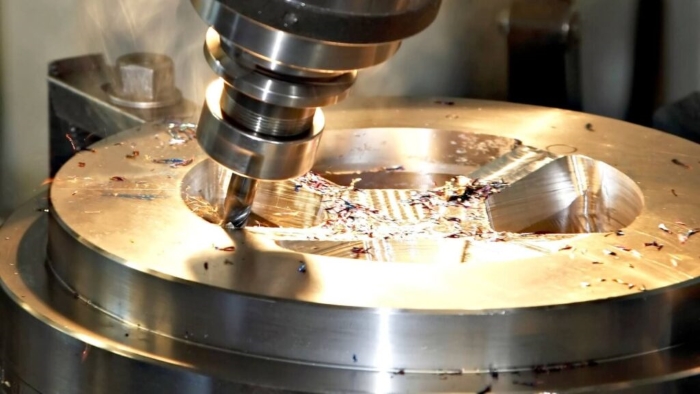
A clear storyboard is essential for a professional CNC Milling animation in Fusion 360. Instead of randomly moving components, think in terms of scenes and steps that mirror how the CNC Milling process really runs.
A typical CNC Milling storyboard may include scenes such as:
- Showing the empty CNC Milling machine table and fixture.
- Loading the raw stock onto the fixture and clamping it.
- Zooming in on the work coordinate system location.
- Running the first CNC Milling operation, such as facing the top surface.
- Flipping the part or changing the fixture for the second operation.
- Showing the finished part removed from the CNC Milling setup.
If the process is complex, you can create multiple storyboards within the same design file. For example, one storyboard can show a short CNC Milling animation for marketing, while another storyboard provides a detailed step-by-step training animation for operators.
With the storyboard defined, begin animating the physical elements of the CNC Milling process. Component transforms are used to move parts into and out of position along the timeline.
You can animate the raw stock moving from off-screen into the CNC Milling vise, followed by the vise jaws closing to clamp the material. You may also animate clamps or locating pins engaging the stock to show how the part is secured. Later in the sequence, the finished part can be unclamped and lifted out of the CNC Milling fixture.
Tool motion can be represented in a simplified way. For example, you can animate the spindle and tool holder moving into position above the part, lowering to cutting height, and retracting between CNC Milling operations. Even without showing chip formation, this motion helps viewers understand where CNC Milling operations take place and in what order.
Camera control is one of the strongest features for explaining CNC Milling details in an animation. In Fusion 360, you can record changes in the camera view directly onto the animation timeline. This allows smooth transitions between wide views and close-up shots.
For example, you can start with a wide view of the entire CNC Milling workstation, then zoom into the exact region where the tool engages the stock. After that, you can pan to another side of the part as the CNC Milling operation progresses. These controlled camera motions help guide the viewer's attention to the most important features.
Exploded views are especially useful for explaining fixtures in CNC Milling. You can animate soft jaws, parallels, and clamps moving away from the part in an exploded configuration to show how everything fits together. Then you can reverse the exploded animation to reassemble the CNC Milling setup and continue with the machining steps.
To make your CNC Milling animation more educational, you can add callouts or text notes to highlight important features. For instance, you might add a callout to identify the work coordinate system, another to name a specific CNC Milling tool, and another to label a critical tolerance on the part.
These annotations turn the CNC Milling animation into a visual instruction manual. Operators can see both the motion and the key information in one place. This approach is especially useful for standardized CNC Milling jobs that are run repeatedly, because it reduces the learning curve for new staff.
Fusion 360 allows you to keep design, manufacturing, and animation data in one file, which makes it easier to keep everything synchronized. While the Animation workspace does not show real chip-by-chip cutting, you can combine it with the CNC Milling simulation from the Manufacture workspace to provide a complete picture.
One common workflow is to record the CAM simulation using screen-capture software, then use the Animation workspace to create a separate video that focuses on setup, workholding, and high-level CNC Milling steps. Together, these two videos form a powerful training package: one film shows accurate material removal, while the other shows how to set up and handle the part in the CNC Milling machine.
After designing and refining your CNC Milling animation, you can publish it as a video file for sharing and reuse. Fusion 360 offers publishing and rendering tools that output standard video formats, which can be stored on your server, learning platform, or company intranet.
Export the CNC Milling animation at a resolution that is suitable for your target audience. High-resolution videos are suitable for conference presentations or marketing, while smaller files are convenient for shop-floor tablets. Once exported, the CNC Milling animation can be linked to digital work instructions, quality checklists, and CNC programs.
Building a library of CNC Milling animations for common parts and fixtures provides long-term value. Over time, this collection becomes a knowledge base that helps maintain consistent standards, reduces onboarding time, and supports continuous improvement in your CNC Milling department.
To get the best results from CNC Milling animation in Fusion 360, follow some practical best practices throughout the project:
- Keep your component tree organized with clear names and logical structure.
- Focus the animation on key CNC Milling setup and machining steps that affect safety, quality, or efficiency.
- Avoid unnecessary camera motion that may distract from the main CNC Milling process.
- Update the animation whenever the design or toolpaths change, so it always reflects the latest version of the CNC Milling workflow.
By following these guidelines, the CNC Milling animation remains accurate, easy to maintain, and highly valuable for both technical and non-technical viewers.
Using Fusion 360 to create CNC Milling animation brings your machining process to life and turns complex CAM data into clear visual communication. By carefully preparing the model, defining accurate CNC Milling toolpaths, validating them through simulation, planning a strong storyboard, and using the Animation workspace effectively, you can produce professional animations that support training, documentation, and sales. Over time, a well-organized library of CNC Milling animations becomes a strategic asset that improves consistency, reduces errors, and enhances the overall quality of your manufacturing operations.
Contact us to get more information!
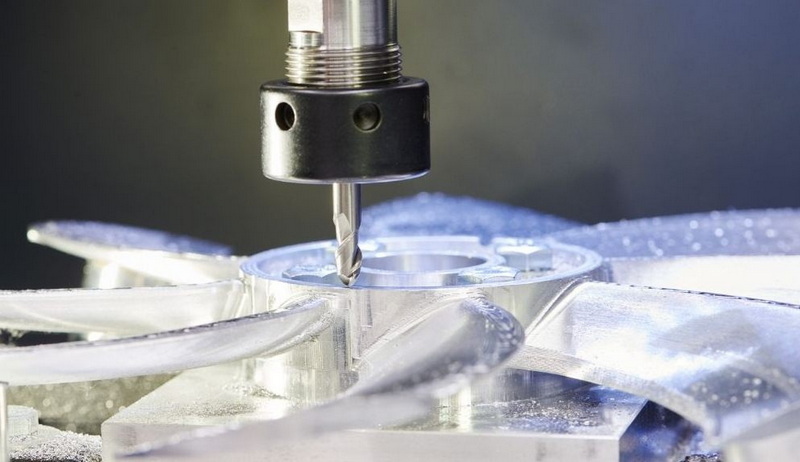
To start a CNC Milling animation, first build your milling setup and toolpaths in the Manufacture workspace and verify them with simulation. Then switch to the Animation workspace, where you use the timeline to animate components and camera views that explain the CNC Milling process.
Fusion 360 shows realistic material removal in the CAM simulation, but the Animation workspace focuses on moving components and camera angles instead of chip-level cutting. A common practice is to combine recorded CNC Milling simulation with a separate animation that explains setup and fixtures.
You should include CNC Milling stock, the finished part model, vises, soft jaws, clamps, locating pins, and any important tooling that appears in the setup. Modeling each element as a separate component lets you animate stock loading, clamping, part flipping, and fixture changes during the CNC Milling sequence.
An effective CNC Milling animation is usually only a few minutes long and focuses on the most important setup and machining stages. Short and clear CNC Milling clips are easier for operators to watch before a job and simpler to keep updated as fixtures and strategies change.
Yes, one advantage of Fusion 360 is that design, CAM, and animation data are linked in a single file. When the part geometry or CNC Milling toolpaths change, you can update the design and then adjust the existing animation timeline, instead of recreating the entire CNC Milling animation from scratch.
1. https://www.autodesk.com/products/fusion-360/blog/animate-design-fusion-360-tutorial/
2. https://www.autodesk.com/learn/ondemand/curated/milling-basics
3. https://www.autodesk.com/learn/ondemand/tutorial/create-a-setup-in-fusion-for-milling
4. https://help.autodesk.com/view/fusion360/ENU/
5. https://www.autodesk.com/uk/products/fusion-360/cnc-machining


